How to Duplicate a Page or Post in WordPress
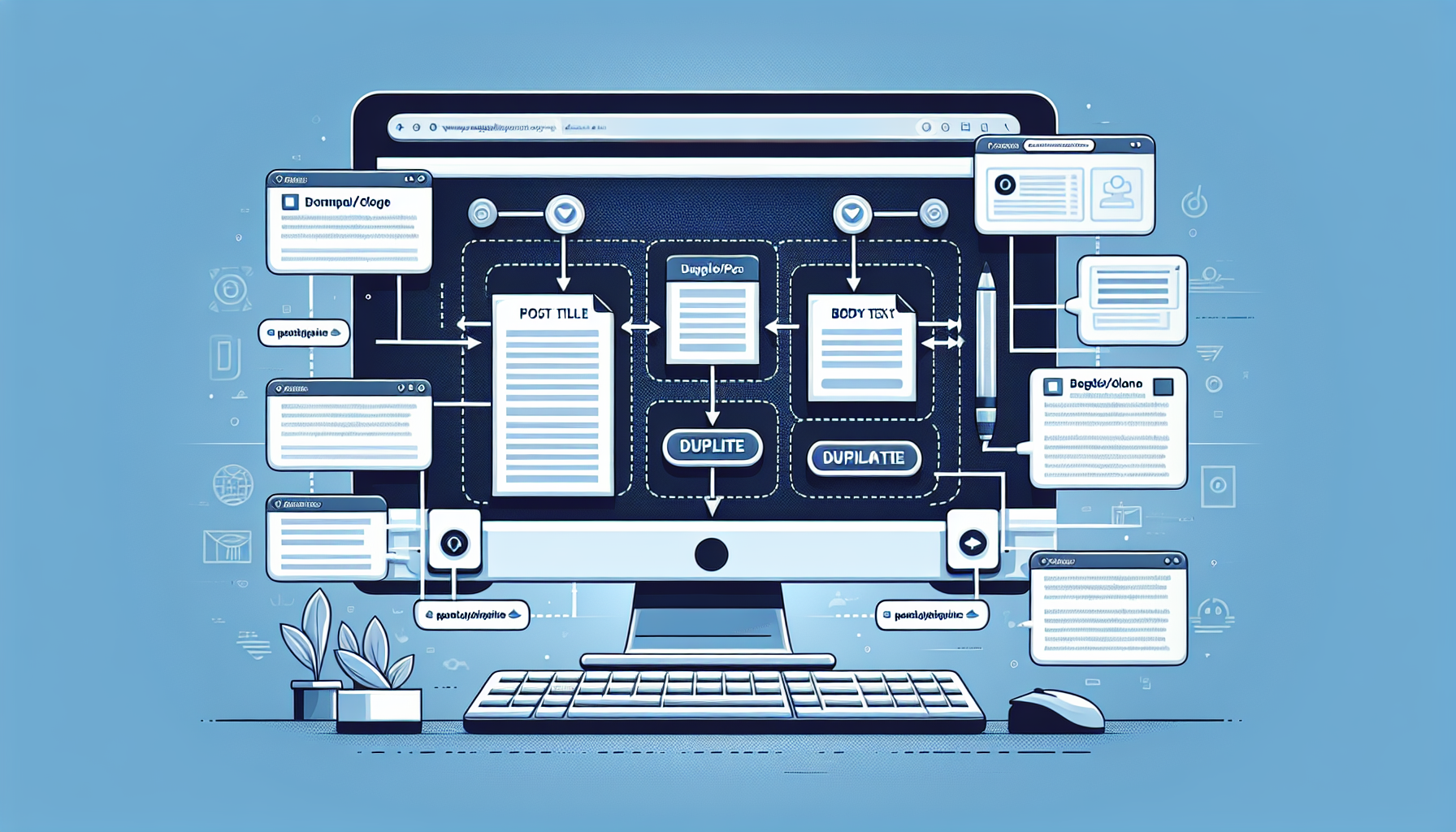
Quick Guide to Duplicating Pages and Posts in WordPress
Are you looking to save time by duplicating content on your WordPress site? Whether you’re creating a similar post or need to retain the same format for consistency, duplicating pages and posts can be super handy.
TL;DR: Duplication Made Easy with Code
function duplicate_post_as_draft(){ global $wpdb; $post_id = isset( $_GET['post'] ) ? absint( $_GET['post'] ) : ''; if(empty($post_id)){ wp_die('No post to duplicate has been supplied!');
$post = get_post( $post_id ); $current_user = wp_get_current_user(); $new_post_author = $current_user->ID;
Getting Started with Post Duplication
First off, duplicating a post or page can seem tricky, especially if you are relatively new to WordPress.
You might want the same layout or content as a starting point for a new post or page without having to recreate everything from scratch.
Duplicating Content without a Plugin
Did you know that WordPress allows for content duplication even without a plugin? Here’s a simple code snippet you can use.
function rd_duplicate_post_as_draft(){ global $wpdb; $post_id = isset( $_GET['post'] ) ? absint( $_GET['post'] ) : ''; if(empty($post_id)){ wp_die('No post to duplicate has been supplied!'); }
$post = get_post( $post_id ); $current_user = wp_get_current_user(); $new_post_author = $current_user->ID; // If you have post data ready to be copied $new_post = array( 'post_title' => $post->post_title, 'post_content' => $post->post_content, 'post_status' => 'draft', 'post_author' => $new_post_author, ); $new_post_id = wp_insert_post( $new_post ); }
When a Plugin is Your Best Bet
While code is powerful, a plugin might be the more user-friendly choice for duplicating posts or pages, especially if you are not comfortable with editing code.
Plugins like Duplicate Post, Yoast Duplicate Post, and WP Post Page Clone are very popular.
Step-by-Step: Duplicating with a Plugin
Let’s say you’ve chosen to use Yoast Duplicate Post due to its ease of use and popularity. Here’s what you do.
Install and activate the plugin, then go to the ‘Posts’ or ‘Pages’ section of your dashboard.
Customizing Your Duplication Settings
Before you start duplicating, check the plugin’s settings. You can decide what to copy and what to leave behind.
With Yoast Duplicate Post, you can also choose to clone or create a new draft. This control can be crucial depending on your needs.
Pros of Using a Plugin
Plugins are user-friendly and generally come with support and updates.
They can provide additional features beyond basic duplication, which may enhance your workflow.
Cons of Using a Plugin
Plugins can bloat your site, potentially slowing it down or conflicting with other plugins.
Over-reliance on plugins for simple tasks may limit your learning and adaptation to the WordPress platform.
FAQs on Duplicating in WordPress
Can I duplicate custom post types as well?
Yes, most duplication methods and plugins support custom post types, offering a versatile solution for various content.
Will the duplicated posts include metadata and taxonomies?
With plugins, you usually have the option to include or exclude metadata and taxonomies based on your duplication settings.
Is it safe to duplicate content, considering SEO?
As long as the duplicated content is manually edited to avoid duplicate content issues, SEO should not be negatively impacted.
Where do I add the code snippet for manual duplication?
The code snippet for manual duplication usually goes into your theme’s functions.php file, or a site-specific plugin.
How do I ensure that the duplicated page does not go live immediately?
Make sure to set the duplicated content to ‘draft’ status if you’re not ready for it to be live.
Taking the First Steps to Duplicate with Confidence
Whether you’re well-versed in WordPress or just getting started, it’s clear that duplicating posts and pages can significantly streamline your content management process.
If you’re comfortable with code, the snippets provided above can get you started right away.
“`html
In-Depth Guide to Duplication Methods
Getting into the nuts and bolts, duplication hinges on whether you choose a programmatic or plugin-oriented approach.
Each method has its own steps and considerations, which can affect your workflow.
Duplicating Pages Manually Through PHP
Duplicating a WordPress page or post is surprisingly straightforward if you’re familiar with PHP.
The duplicate_post_as_draft function mentioned earlier can become part of your theme’s arsenal.
Implementation of The Duplication Function
To put our earlier snippet to work, you should have access to your site’s files.
Connect to your website through FTP and locate the functions.php file in your active theme’s directory.
Careful Editing and Deployment
Prior to diving into the functions.php file, it’s important to have a backup.
Mistakes happen and having a fallback ensures your site’s safety.
Duplication with Shortcode Support
What if your source post includes shortcodes? Will they carry over?
The above PHP snippet ensures shortcode content duplicates without hassle.
Setting Up Your Development Environment
Before experimenting with any code, set up a local or staging environment.
This prevents any disruption on your live website during testing.
Pros of Manual Duplication
- Full control over how and what is duplicated.
- No additional plugin overhead on your site.
- Better understanding of WordPress’ inner workings.
Cons of Manual Duplication
- Requires coding knowledge which some users may lack.
- Potential risks involved with editing core theme files.
- No user interface, making it less accessible for non-developers.
Choosing the Right Plugin for Duplication
When you prefer the ease of a plugin, selecting the right one becomes the next step.
Popular options include Yoast Duplicate Post, as it balances functionality with simplicity.
Understanding Plugin Settings
Once installed, familiarizing yourself with your chosen plugin’s settings is key.
It influences which elements are cloned during the duplication process.
Customize What You Copy
Options typically range from copying dates, to statuses, to attached files, and more.
Adjust these settings in the plugin’s configuration to suit your needs.
Visibility and Publishing Controls
It’s essential to have control over whether your duplicated content is public or private.
Plugins often provide options to default to ‘draft’ or ‘private’ status.
Unlocking Advanced Features
While the basics cover most needs, some plugins offer advanced functionalities.
Search for premium features if you have specialised duplication needs.
Plugin Features that Enhance Workflow
Additional features might include batch duplication, scheduling, and user role restrictions.
These can significantly improve how you manage duplicated content.
Maintaining Your WordPress Site Post-Duplication
After duplication, there are housekeeping tasks you should consider.
These include updating permalinks and reviewing SEO to ensure your site stays shipshape.
Simplifying Content Creation with Duplication
Duplication serves as a springboard, helping speed up content production while maintaining brand consistency.
Both manual and plugin methods can streamline the process of generating fresh, yet similar content.
Final Thoughts on WordPress Post and Page Duplication
Ultimately, duplicating content in WordPress is about increasing efficiency without compromising quality.
Selecting the right method will depend on your competency, preference, and the nature of your tasks.
FAQs on Duplicating in WordPress: Part 2
Can duplicated posts cause any security concerns?
As long as you follow best practices for code and plugin updates, duplicating posts is safe and secure.
Can I duplicate a page to another WordPress site?
Manual duplication via database and files transfer or using a plugin that supports import/export is possible.
Does duplicating a page help with A/B testing?
Yes, you can use duplicated pages with minor changes to perform A/B testing.
What about duplicating widgets and menus?
Some plugins can duplicate custom settings, including widgets and menus, or you can recreate them manually.
Can duplication save me time on multilingual sites?
Absolutely, it allows you to create translations faster by using an existing post as a template.
“`
Shop more on Amazon