JavaScript and the Broadcast Channel API
What is the Broadcast Channel API?
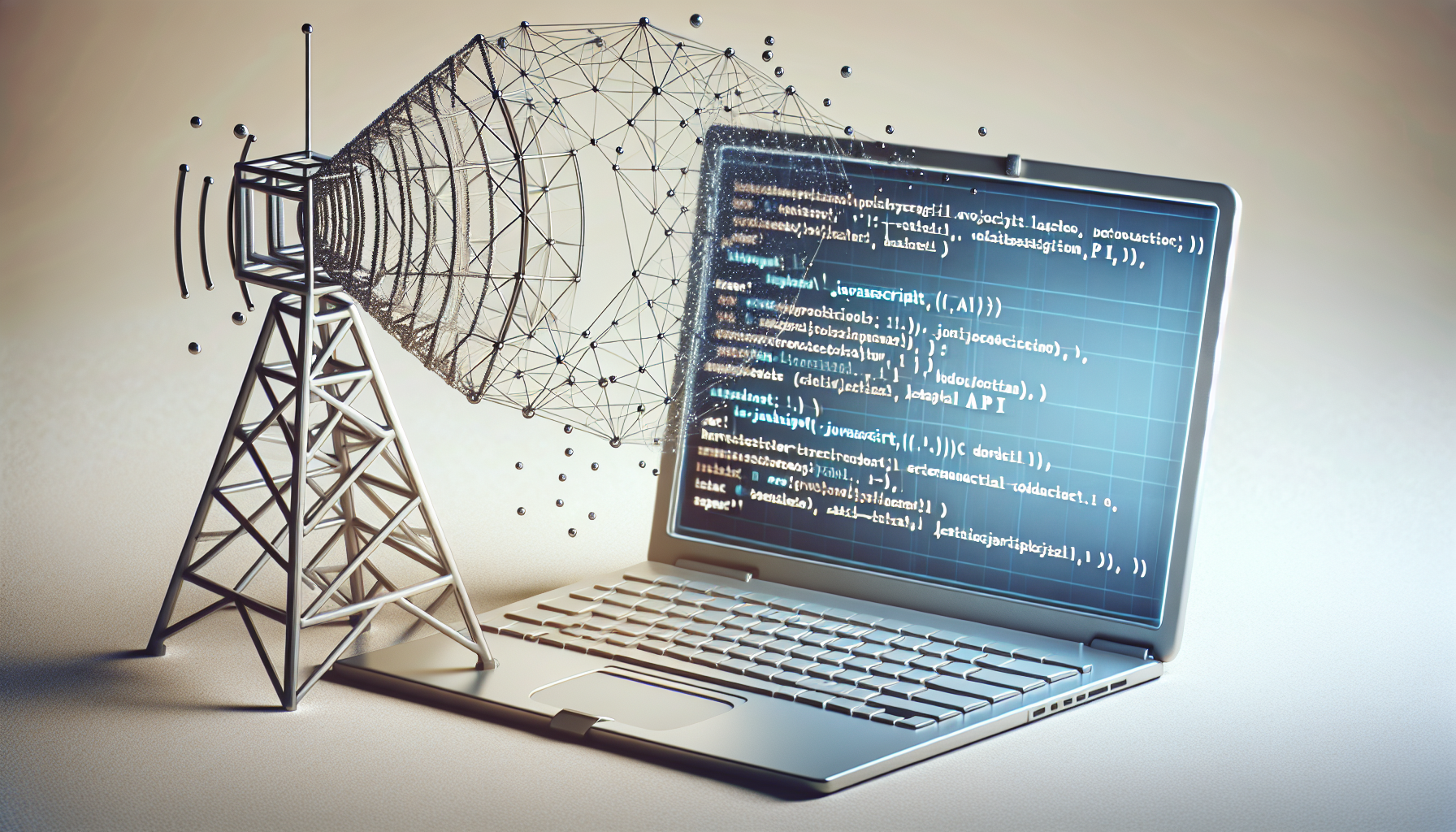
The Broadcast Channel API allows simple communication between browsing contexts.
This means you can communicate between tabs or iframes in the same origin.
The API is easy to use and doesn’t require setting up complex messaging infrastructures.
TL;DR: How to Use the Broadcast Channel API in JavaScript
Create a BroadcastChannel using new BroadcastChannel('channel-name');.
Send a message using channel.postMessage('your message');.
Receive messages using channel.onmessage = (event) => { console.log(event.data); };.
Basic Usage of the Broadcast Channel API
If you’re new to the Broadcast Channel API, this section is for you.
We’ll start with a simple example to showcase how easy it is to set up.
Creating a Broadcast Channel
To get started, you need to create a new Broadcast Channel object.
Use the constructor new BroadcastChannel('channel-name'); to create a channel.
Here’s a simple example of creating a channel:
// Creating a Broadcast Channel named 'my_channel'

const channel = new BroadcastChannel('my_channel');
Sending Messages
Once you have a channel, sending a message is straightforward.
Use channel.postMessage('your message'); to send messages across contexts.
Here’s how you can send a message:
// Sending a message to 'my_channel'

channel.postMessage('Hello from Tab 1');
Receiving Messages
To receive messages, you’ll need to set up an event listener.
Use channel.onmessage = (event) => { console.log(event.data); }; to handle received messages.
Here’s an example of how to receive messages:
// Receiving messages on 'my_channel'

channel.onmessage = (event) => {

  console.log('Received:', event.data);

};
Advanced Use-Cases for the Broadcast Channel API
As you get more comfortable with the Broadcast Channel API, you can explore more advanced use-cases.
This includes handling JSON objects and structured data transfer between tabs.
Sending and Receiving JSON Data
Sending and receiving JSON data is as simple as working with strings.
You can serialize the JSON object before sending and parse it upon receiving.
Here’s an example:
// Sending a JSON object

const message = { type: 'greeting', content: 'Hello' };

channel.postMessage(JSON.stringify(message));
// Receiving JSON data
channel.onmessage = (event) => {
const receivedMessage = JSON.parse(event.data);
console.log('Received:', receivedMessage);
};
Common Issues and Troubleshooting
The Broadcast Channel API is generally straightforward, but some issues might arise.
Here are a few common problems and how to handle them.
Dealing with Dead Channels
- Sometimes, channels might become inactive.
- To handle this, consider checking the status of your channels periodically.
Handling Large Payloads
- Large payloads might cause performance issues.
- To deal with this, consider compressing your data before sending.
Best Practices for Using the Broadcast Channel API
Implementing best practices can help you get the most out of the Broadcast Channel API.
Here are some tips to consider.
Consistent Channel Naming
- Use consistent and descriptive names for your channels.
- This makes it easier to manage and debug your channels.
Efficient Data Handling
- Avoid sending large amounts of data frequently.
- Instead, batch your data or compress it if necessary.
Implementing the Broadcast Channel API in a Real-World Example
Let’s look at a practical example of using the Broadcast Channel API.
This scenario will involve two tabs of the same web application communicating with each other.
Example: Synchronizing State Between Tabs
Suppose you have a web application where users can set preferences.
You want these preferences to be synchronized across all open tabs.
Here’s how you might do it:
// In each tab, create the Broadcast Channel

const channel = new BroadcastChannel('preferences');
// When a preference is updated, broadcast it
updatePreference = (key, value) => {
const message = { key, value };
channel.postMessage(JSON.stringify(message));
};
// Listen for updates in other tabs
channel.onmessage = (event) => {
const { key, value } = JSON.parse(event.data);
applyPreference(key, value); // Function to update the preference in the current tab
};
FAQs
What are the limitations of the Broadcast Channel API?
The Broadcast Channel API only works for browsing contexts in the same origin.
It also doesn’t work across different browser processes.
Can I use the Broadcast Channel API in all browsers?
Most modern browsers support the Broadcast Channel API.
However, always check compatibility as some older versions may not support it.
How do I handle errors with the Broadcast Channel API?
Use try-catch blocks to handle potential errors gracefully.
Also, add event listeners for network or resource errors where applicable.
Is the Broadcast Channel API secure?
The API channels are limited to same-origin contexts.
This reduces the risk of unauthorized access, but always validate messages for added security.
Can I manage multiple channels simultaneously?
Yes, you can create multiple Broadcast Channel objects.
Each with its own unique name for managing different types of messages.
What happens to messages if no one is listening?
Messages are dropped if there are no listeners.
Make sure to set event listeners early to avoid missing messages.
Use Cases and Examples for the Broadcast Channel API
The Broadcast Channel API is versatile and simplifies communication between tabs or iframes.
Let’s dive into more use cases to understand its potential better.
Collaborative Applications
This API can be handy in collaborative applications like document editors.
For instance, multiple users editing the same document can see real-time updates.
Here’s a basic example:
// Creating the channel

const channel = new BroadcastChannel('document-edit');
// Function to broadcast changes
const broadcastChange = (change) => {
channel.postMessage(JSON.stringify(change));
};
// Listen for changes from other tabs
channel.onmessage = (event) => {
const change = JSON.parse(event.data);
applyChange(change); // Your function to apply changes
};
// Example change to broadcast
const change = { userId: 1, content: 'Hello World' };
broadcastChange(change);
Real-Time Notifications
Web applications often need to send real-time notifications.
Using the Broadcast Channel API, you can achieve this easily across multiple tabs.
Here’s how to do it:
// Creating the channel

const channel = new BroadcastChannel('notifications');
// Function to send notifications
const sendNotification = (message) => {
channel.postMessage(message);
};
// Listen for notifications from other tabs
channel.onmessage = (event) => {
alert('New Notification: ' + event.data);
};
// Example notification
sendNotification('You have a new message');
Handling User Sessions
User session management can be tricky, especially with multiple tabs.
The Broadcast Channel API can help synchronize login and logout actions.
Here’s an example:
// Creating the channel

const channel = new BroadcastChannel('user-session');
// Function to broadcast login/logout status
const broadcastSessionStatus = (status) => {
channel.postMessage(status);
};
// Listen for session status from other tabs
channel.onmessage = (event) => {
if (event.data === 'logout') {
// Your function to handle logout
handleLogout();
}
};
// Example usage
broadcastSessionStatus('logout');
Debugging and Logging
Debugging web applications across multiple tabs can be challenging.
Using the Broadcast Channel API, you can aggregate logs from all tabs.
Here’s how:
// Creating the channel

const channel = new BroadcastChannel('debug-logs');
// Function to broadcast logs
const broadcastLog = (log) => {
channel.postMessage(JSON.stringify(log));
};
// Listen for logs from other tabs
channel.onmessage = (event) => {
const log = JSON.parse(event.data);
console.log('Log from another tab:', log);
};
// Example log
broadcastLog({ level: 'info', message: 'User clicked button' });
Best Practices and Potential Pitfalls
While the Broadcast Channel API is powerful, misuse can lead to issues.
Following best practices will help you avoid common pitfalls.
Use Descriptive Channel Names
- Descriptive names prevent conflicts and make code easier to understand.
- Avoid generic names like ‘channel1’ or ‘data’.
Check Browser Compatibility
- Although most modern browsers support the API, always check compatibility.
- This ensures your application works across all intended platforms.
Optimization Tips
Optimizing how you use the API can improve your application’s performance.
Here are a few tips:
Limit Broadcasting Frequency
- Avoid broadcasting messages too frequently.
- This can cause performance bottlenecks.
Compress Data
- Consider compressing data before broadcasting.
- This reduces the payload size and speeds up communication.
Security Considerations
Security is crucial when using the Broadcast Channel API.
Here are a few points to keep in mind:
Validate Incoming Messages
- Always validate messages to prevent security vulnerabilities.
- This helps avoid malicious data potentially affecting your application.
Use HTTPS
- Ensure your application runs over HTTPS.
- This adds a layer of security for your data transmission.
Common FAQs
What do I do if my messages don’t arrive?
Check if the channel names match across all contexts.
Also, ensure that the channel event listeners are set up correctly.
How to handle errors while using the Broadcast Channel API?
Wrap your code in try-catch blocks to handle possible errors.
Log the errors to understand better what’s causing them.
Can channels be closed?
Yes, you can close a channel using the channel.close(); method.
This helps free up resources if the communication is no longer needed.
What happens to messages if a tab is closed?
If a tab is closed, it will no longer receive messages.
All messages are dropped if there are no active listeners.
How to ensure messages are not duplicated?
Use unique identifiers for messages to prevent duplication.
This helps to avoid processing the same message multiple times.
Is it possible to broadcast messages to specific tabs?
Broadcast Channel API sends messages to all tabs in the same origin.
If you need to target specific tabs, use other communication methods like localStorage or sessionStorage.