How to Add a Favicon to Your WordPress Website
Understanding Favicon Importance
A favicon, or favorite icon, might seem like a minor detail on your WordPress website, but it plays a crucial role in brand recognition and user experience.
What is a Favicon?
A favicon is a small, iconic image that represents your website in web browsers and bookmark lists.
Technical Requirements for a Favicon
Before adding a favicon, ensure it’s in the correct format—typically ICO, PNG, or GIF—and sized usually around 16×16 or 32×32 pixels.
TLDR: Quick Favicon Addition Summary
<link rel="shortcut icon" href="YourSiteURL/favicon.ico" type="image/x-icon">

<link rel="icon" href="YourSiteURL/favicon.ico" type="image/x-icon">
This snippet adds a basic favicon to your header.
Step-by-Step Guide to Adding a Favicon in WordPress
Here’s how to enhance your site’s professionalism and user friendliness by adding a favicon.
Step 1: Prepare your favicon image with the technical specifications mentioned earlier.
Step 2: Go to the WordPress admin area and navigate to Appearance > Customize.
Step 3: Click on ‘Site Identity’ or a similar section that might be theme-dependent.
Step 4: Upload your favicon image where it says ‘Site Icon’ and save your changes.
For older versions of WordPress or for a more manual approach:
Step 1: Access your server via FTP or file manager in your hosting control panel.
Step 2: Upload your favicon to the root directory of your WordPress install.
Step 3: Add the provided code snippet into the header.php file of your theme or use a plugin that allows for header scripts.
It’s important to clear your browser cache to see changes immediately.
Alternative Methods to Add a Favicon
If the customizer option is not available or if you prefer plugins, there are several available that can manage favicons for you.
One such plugin is ‘Favicon by RealFaviconGenerator’, which provides a detailed walkthrough and additional options for multiple platforms.
Advantages and Trade-offs of Favicon Customization
Pros
- Enhanced brand recognition.
- Better user experience for returning visitors and those who bookmark your site.
- Possibility to differentiate between multiple open tabs for users.
Cons
- Additional step in the website setup process.
- May require updates when rebranding or changing your site’s design.
Best Practices for Creating Your Favicon
Keep it simple, recognizable, and aligned with your brand aesthetics.
Avoid using too much detail that won’t be visible at such a small size.
Test your favicon in various browsers and devices to ensure compatibility.
Common Issues and Solutions
Issue: Favicon not showing up after upload.
Solution: Clear your web browser cache and ensure you saved all changes in the customizer.
Issue: Favicon looks blurry or too detailed.
Solution: Redesign your favicon for simplicity, ensuring it maintains its essence at a small scale.
Issue: Favicon not appearing in certain browsers.
Solution: Check your favicon’s file format and size – converting to ICO format can often solve cross-browser issues.
Frequently Asked Questions
How often should I update my favicon?
Your favicon should be updated whenever your branding changes or if you are refreshing your site’s design for clarity and recognition.
Can I have a different favicon for mobile devices and desktop?
Yes, using plugins or additional link tags within your head element, you can specify different favicons for various devices or platforms.
Is a favicon necessary for SEO?
While it is not a direct ranking factor, a favicon improves user experience, which is a consideration for search engine rankings.
What should I do if my favicon is not updating on some user’s devices?
Advise your users to clear their cache, as cached versions of your site may still display the old favicon.
Ensuring Favicon Visibility Across Devices and Browsers
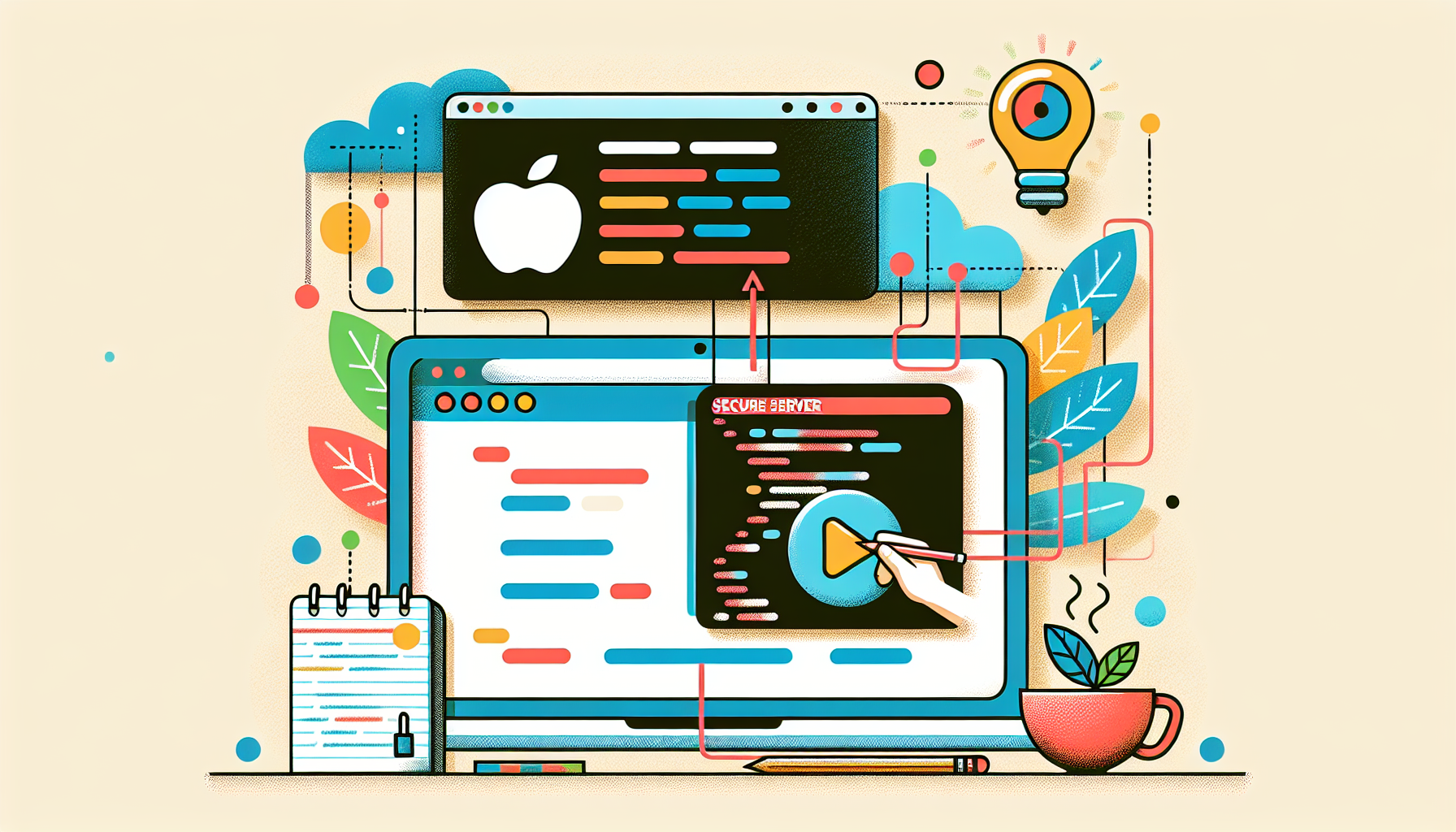
To guarantee your favicon is visible no matter where your site is accessed, you might need to include additional lines in your head section for Apple icons, Android, and Microsoft tiles.
<link rel="apple-touch-icon" sizes="180x180" href="/apple-touch-icon.png">

<link rel="icon" type="image/png" sizes="32x32" href="/favicon-32x32.png">

<link rel="icon" type="image/png" sizes="16x16" href="/favicon-16x16.png">

<link rel="manifest" href="/site.webmanifest">

<meta name="msapplication-TileColor" content="#2b5797">

<meta name="theme-color" content="#ffffff">
These lines cater to different devices and their respective requirements for displaying a favicon.
Customizing favicons for each platform enhances brand consistency across devices.
Additionally, Microsoft’s TileColor meta tag and the theme color can be adjusted to match your site’s theme, unifying the user experience even when on a Start screen.
Favicon Design Tips and Tricks
When designing your favicon, aim for maximum impact with a minimalistic design.
Using vector-based design software like Adobe Illustrator or free online tools can help create a clean and scalable icon.
Designing in a scalable vector format allows for easy resizing and adaptations without loss of quality.
Many online favicon generators can convert your designs to the appropriate formats and sizes, simplifying the process.
Accessing and Modifying Your Theme’s Header.php
If you choose to insert the favicon links manually, accessing your themes header.php file is necessary.
From your WordPress dashboard, navigate to Appearance > Theme Editor, and locate the header.php file.
Always backup your website before making direct changes to theme files to avoid any potential issues.
Paste the favicon link tags within the head section of the header.php file, usually before the wp_head() function call.
Monitoring Your Favicon’s Performance
Once your favicon is live, it’s smart to periodically check its visibility across various browsers and devices.
Tools like Google’s Mobile-Friendly Test can give you insights into how your favicon—and site as a whole—performs on different platforms.
Most analytics tools do not track favicon efficacy, but user feedback can be informative.
Continued monitoring ensures brand consistency and helps identify when updates might be necessary.
Handling Favicon Caching Issues
If you’ve updated your favicon but it’s still not showing, browser caching might be at play.
Using cache busting techniques by appending a query string, like favicon.ico?v=2, can prompt browsers to fetch the new version.
<link rel="shortcut icon" href="YourSiteURL/favicon.ico?v=2" type="image/x-icon">
This informs the browser that there is a new version of the favicon, prompting it to update the cached file.
Optimizing Favicon Loading for Performance
Another aspect often overlooked is favicon loading performance, which can impact your page load times.
Keeping your favicon file size small is a good best practice to help keep your site speedy.
Optimization tools can compress your favicon without sacrificing quality, thereby improving load times.
Integrating a Favicon with eCommerce and Multi-Site Setups
For WordPress users running WooCommerce or multi-site installations, unique favicons can play a role in user navigation.
Customizing favicons for different stores or sites can aid users in easily identifying various tabs and sections.
Plugins like ‘Multisite Favicon’ can help administer different favicons across network sites with ease.
Utilizing Data URIs for Inline Favicons
An advanced technique involves encoding the favicon as a Base64 data URI directly in your HTML, eliminating additional HTTP requests.
<link rel="icon" href="data:image/x-icon;base64,AAABAAEA==..." type="image/x-icon">
This inlines the favicon, potentially saving load time, but has its own set of trade-offs regarding caching and size.
Legal Considerations for Favicon Design
Lastly, it’s crucial to consider intellectual property laws when designing or selecting a favicon.
Use original artwork or purchase stock icons with a commercial license to avoid copyright infringement.
Trademarked logos and symbols can only be used with permission or licensing from the trademark holder.
Frequently Asked Questions
What impact does a favicon have on my site’s load time?
While a favicon is a small file and doesn’t significantly impact load times, ensuring it’s optimized for size and using cache-control headers can help maintain optimal performance.
Can too many changes to my favicon have negative effects?
Regularly changing your favicon can be confusing for users and might hinder brand recognition, so it’s best to update it only when necessary.
What’s the difference between a favicon and a web icon?
A favicon is specifically designed to represent your website in browser tabs and bookmarks, while web icons can refer to any graphical representation on your website.
Can a favicon be animated?
Yes, favicons can be animated, but it’s not widely supported across all browsers and can be distracting to users. It’s generally recommended to keep the favicon static for consistency and clarity.
Shop more on Amazon